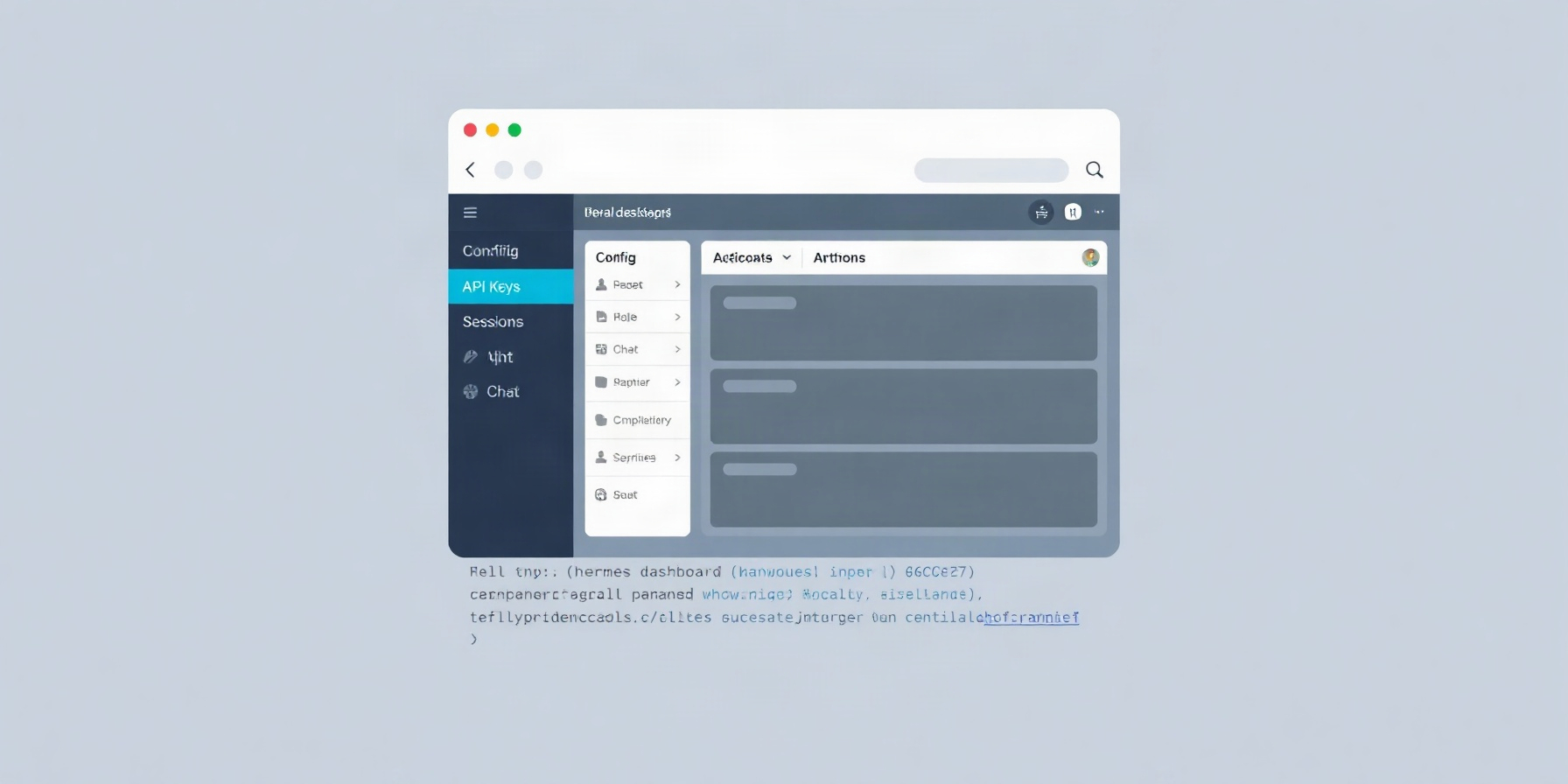
Hermes Agent Web Dashboard: Beginner's Setup Guide
Launch the Hermes Agent web dashboard and manage config, API keys, sessions, and logs from your browser instead of hand-editing YAML, then explore every tab.
The hermes agent web dashboard is a browser-based control panel for your local Hermes install, and it replaces hand-editing config.yaml and memorizing CLI flags for most day-to-day tasks. One command, hermes dashboard, starts a local server and opens a UI for config, API keys, sessions, and monitoring. By the end of this guide you will know how to install the extras, launch it, tour the key tabs, and expose it safely.
How this guide was built
This guide is based on the official Hermes Agent documentation and the project repository — we did not run the tool hands-on for this walkthrough. Our two sources are the web dashboard documentation and the Hermes Agent GitHub repository, and every claim here was last checked against them on September 14, 2026.
What is the Hermes Agent web dashboard?
The Hermes Agent web dashboard is a browser UI that manages your local install instead of manual YAML and CLI work. It handles configuration, API keys, sessions, and monitoring from a single page. The server runs entirely on localhost, and the project is MIT-licensed and free, per the official dashboard documentation.
The dashboard covers far more than config editing. Its tabs include Status, Chat, Config, API Keys, Sessions, Logs, Analytics, Cron, Profiles, Skills, MCP, Webhooks, Pairing, Channels, and System. That means you can watch usage analytics, manage scheduled jobs, and inspect MCP server connections without leaving the browser. Because it writes to the same config.yaml your CLI already reads, it is an addition to your workflow rather than a replacement for it. If you want to understand what those config fields actually control, our Hermes configuration deep dive pairs well with the Config tab.
How do I start the Hermes Agent web dashboard?
You start the Hermes Agent web dashboard by installing two Python extras, running hermes dashboard, and letting it open 127.0.0.1:9119 in your browser. The server binds to loopback by default, so your data stays on your machine. The dashboard docs cover the full flag list and security model.
Prerequisites: install Hermes Agent
You need Hermes Agent itself first, and git is the only prerequisite. On Linux, macOS, WSL2, or Termux, run the install script from the installation guide. On Windows, use the provided PowerShell installer. Platform support varies by tier, so check the platform support page if you are on an unusual environment before troubleshooting further.
Install the web extras
The dashboard ships as optional extras, so install them with uv pip install -e ".[web,pty]" from your Hermes checkout. The web extra provides the FastAPI-based server, and pty provides the pseudo-terminal backend the Chat tab needs. The .[all] shorthand installs everything at once. The Chat tab additionally requires Node.js on your machine.
uv pip install -e ".[web,pty]"If you plan to serve the API programmatically too, the API server documentation describes the same FastAPI stack in more depth.
Launch the dashboard
Run hermes dashboard and the server starts at 127.0.0.1:9119, opening your browser automatically. A few flags change that behavior: --port and --host control the bind address, --no-open skips the browser launch, and --isolated runs a separate instance. The --insecure flag still exists but is a deprecated no-op.
hermes dashboard --port 9119 --host 127.0.0.1Your first tour: key tabs at a glance
The dashboard groups its tools into more than a dozen tabs, each covering one job. The ones you will open most often are Config, API Keys, Chat, Sessions, and Logs, so this tour focuses on those and what each is actually for. Everything else sits in the sidebar for when you need it.
Config
The Config tab auto-discovers available fields from DEFAULT_CONFIG and writes your changes back to the same config.yaml the CLI reads. Edits apply on the next session restart, not instantly, per the dashboard documentation. For a field-by-field explanation, see our Hermes configuration deep dive.
API Keys
The API Keys tab sets provider credentials through the UI instead of editing .env by hand. If you have an active CLI session open, run /reload in that session to re-read .env and pick up the new keys without restarting. Pair this with the providers hub when you are deciding which model backends to wire up.
Chat
The Chat tab is a real terminal user interface streamed over WebSocket and PTY, not a simplified chat box. It needs the pty extra plus Node.js installed, and it requires a POSIX pseudo-terminal. On Windows, run it under WSL2 rather than natively.
Sessions & Logs
The Sessions tab shows active sessions so you can monitor what is running, and the Logs tab surfaces server output for debugging. Together they replace tailing log files and guessing which process is still alive. Our Hermes troubleshooting guide covers the error patterns you are most likely to see here.
Configuring safe remote access
Remote access is safe by default because the dashboard binds to loopback, where no authentication is required; the moment you bind to a non-loopback address, an auth gate engages and fails closed, per the dashboard docs. You configure credentials under dashboard.basic_auth, or through environment variables, and OAuth is available for stronger setups.
For most people the simplest path is not to expose the port at all. Tunnel to it over SSH port forwarding, or put it behind a private network such as Tailscale, and you keep the auth-free loopback behavior while reaching it from another machine. If you do bind publicly, set basic auth first and verify with a curl request before closing your working session. Our hosting guide covers deployment patterns in more detail.
One server, many profiles
A single dashboard server can manage multiple Hermes profiles. The sidebar includes a profile switcher, and you can deep-link to a specific profile with a ?profile=<name> query parameter. Worker dashboards route to the right profile automatically, and the --isolated flag runs a fully separate instance. That matters if you keep distinct work and personal setups.
Common mistakes
Most dashboard problems come from skipping a prerequisite or misreading how the security model works. None of these are exotic failures — they are the handful of things that trip up nearly every first-time setup. Check this list before you start filing a bug report.
- Launching before installing extras.
hermes dashboardfails until you runuv pip install -e ".[web,pty]"or.[all]. - Binding to
0.0.0.0without configuring auth. The gate fails closed, which locks you out rather than leaving you exposed. Setdashboard.basic_authfirst. - Reaching for
--insecure. It is a deprecated no-op and does not disable authentication. - Expecting instant config changes. Config edits apply on the next session restart; key changes need
/reloadin an active CLI session. - Confusing
hermes dashboardwithhermes serve. The first is the web UI; the second is a headless server for Desktop and remote clients, as listed in the CLI commands reference. Our Hermes gateway setup guide untangles the two.
FAQ
Does the Hermes Agent web dashboard send data to the cloud?
No. The dashboard server binds to loopback by default and your configuration, keys, and session data stay on your local machine. Cloud access is only involved if you separately connect a hosted model provider, and the dashboard documentation describes the local-first model.
How do I manage multiple Hermes profiles from the dashboard?
Use the sidebar profile switcher to move between profiles, or deep-link directly with a ?profile=<name> query parameter. One server handles many profiles, and worker dashboards route automatically. The --isolated flag spins up a completely separate instance when you need stronger separation.
Can I use the dashboard REST API without the browser UI?
Yes. The same server exposes endpoints including /api/status, /api/config, /api/env, /api/sessions, /api/analytics/usage, /api/cron/jobs, and /api/mcp/servers. Send credentials as a header using the literal placeholder form Authorization: Bearer <API_TOKEN>, swapping in your own token, and the API server documentation lists the full surface.
Where to go next
Start with the official dashboard documentation for the complete tab and flag reference, then read the API server docs if you want to script against the endpoints. The Nous Portal integration page explains optional model access. On this site, continue with our Hermes configuration deep dive, our Hermes gateway setup guide, and the skills hub for extending your install.
📖 Related Reads
- NoCode Insider — AI workflow automation with no-code tools, agents, and APIs
- ToolBrain — tool reviews, LLM comparisons, and AI workflow guides
Cross-links automatically generated from Hermes Tutorials.