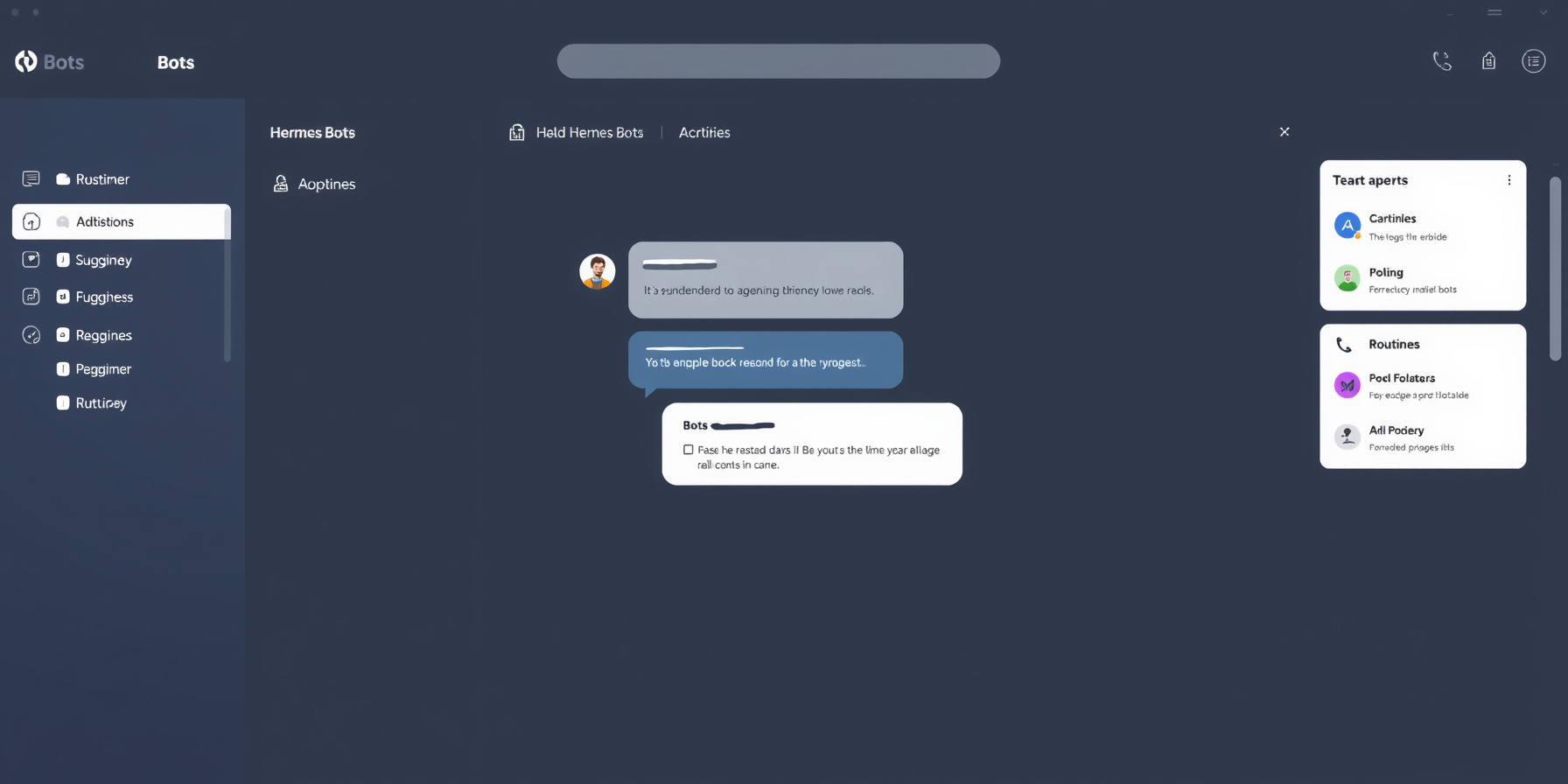
Hermes Agent Bot Mode: Build a Team of Specialist Bots with Routines and Group Chats
Bot Mode is built-in, on-by-default UI over Hermes profiles, not a new primitive: each Bot owns model, memory, skills, credentials, and chat history,…
Hermes Bot Mode does not add a new “agent” primitive. It turns profiles into named Bots that each own their model, memory, skills, credentials, and chat history inside the desktop app you already run. Bot Mode ships built in and is on by default. This guide builds a small roster of specialist Bots, gives one a recurring routine, then wires two Bots into a group chat.
How this was researched: This guide is based on official Hermes Agent documentation and release notes — we did not run Bot Mode hands-on. Every path, command, cap, and behavior claim draws from the official Bot Mode, Profiles, Cron, Memory, Desktop, Messaging gateway, Security, Multi-connection desktop, and Voice mode pages. No UI was tested.
What Bot Mode Actually Is
A Bot is not a new kind of agent. It is a Hermes profile with its own memory, skills, model, and chat history, surfaced in the desktop Bots tab. You can create several Bots from one install, and every Bot stays inspectable from the CLI under ~/.hermes/profiles/<name>/.
The Bot Mode documentation is explicit that there is no new primitive here: Bot Mode is a UI over the profile primitive. It appears as a Bots tab next to Sessions in the left sidebar, with a Routines tile docked beside the conversation while that tab is active. The docs also promise no core patches, no background daemons, and no extra storage.
That design choice has a practical payoff. Everything the desktop shows you is reachable from a shell. Chat with a Bot via hermes -p <bot> chat, read its files under ~/.hermes/profiles/<bot>/, and see its routines in hermes cron list — Bot jobs are namespaced [bot:<name>]. If you have never built a profile by hand, start with the Hermes profiles guide before adding a UI layer on top.
Setting Up Your First Specialist Bot
In Bot Mode you create a specialist by clicking New Agent in the roster and filling three fields: Name, Title, and Description. The Bot exists within seconds and introduces itself as the first message in its new Bot Chat. Nothing else is required before it can work.
For a worked example, build an Inbox Analyst. The three-field quick path gets you a named Bot with its own chat; the Advanced disclosure is where the specialization happens, and it opens the same surface that Edit Profile reopens later on a live profile:
- Clone from an existing profile to start from another Bot’s config, skills, SOUL, and memory, or choose Fresh profile for a clean start. Create empty skips bundled skills for a minimal profile.
- Model and provider pin — different Bots can run on different models side by side. Leave it unset to inherit from the launch profile.
- Custom SOUL.md for the Bot’s persona and standing instructions.
- Per-skill, per-toolset, and per-MCP-server enablement, which is where you narrow an Inbox Analyst down to mail-shaped work. The skills system covers what bundled skills give you out of the box.
- Copy API keys from the main profile, on by default. Static API keys are copied in, but single-use OAuth logins (Anthropic, OpenAI Codex, xAI) are not — sign the Bot in itself with
hermes -p <name> auth add <provider>. Each profile owns its own credential store, which the security docs describe.
On a multi-connection desktop, a Create on picker chooses which machine’s backend receives the profile; the window never switches gateways. The new Bot then shows up as a Connections Bot, with an @name-device handle when the same name exists on several machines. On the common single-connection setup the picker is hidden. Duplicate makes a full clone of config, skills, SOUL.md, memory, and look; Delete Profile is permanent and sits behind a destructive confirmation, and the default profile cannot be deleted.
Avatars are cosmetic but identity-bearing: blob faces are deterministic from the Bot’s name, geometric faces animate during a focused live turn, and you can also upload an image, generate a portrait through the standard image.generate RPC when an image backend is configured, or pick a pixel pet from the petdex gallery. A Bot’s look, title, and description live in profile metadata on the backend, so it appears the same on every desktop connected to that backend. Voices follow the same logic: a Bot speaks with its own profile’s TTS settings (tts.* in that profile’s config.yaml) on its own gateway, as covered in the voice mode docs and our voice mode walkthrough.
The Canonical Bot Chat Explained
Every Bot gets a canonical Bot Chat the moment it is created — a persistent, pinned conversation that is the Bot’s home. Typing /new or /reset inside it is rerouted to /compact instead, giving fresh working context without abandoning the conversation. Regular sessions on the same profile keep full /new freedom.
That reroute matters. A routine’s output, a delegated job, and your own questions all want to land in the same place, and a Bot Chat is built to never drift. Archiving a Bot Chat retires it; the next click starts a fresh conversation that becomes the new canonical Bot Chat. The automatic idle-archive sweep controlled by sessions.auto_archive never retires a Bot Chat.
If you need the Bot’s most recent ordinary conversation rather than its home thread, right-click the Bot and choose Open recent session — that jumps to its most recently active session, whether it came from a cron run, a delegated job, or a side thread.
Routines: Giving a Bot Recurring Work
The Routines tile, docked beside the conversation while the Bots tab is active, attaches recurring tasks to the Bot that does them. A routine is a plain Hermes cron job namespaced [bot:<name>], so it appears in hermes cron list and the core Cron page. Runs land in the Bot’s own chat history.
The mental model from the cron documentation: “summarize my inbox every morning” lives next to the Bot responsible for it, not in a global scheduler you have to cross-reference. A structured schedule picker builds the schedule by asking for frequency first, then only the detail that actually matters for that frequency. If you prefer raw control, an Advanced field exposes the underlying Hermes schedule string.
# What Bot routines look like from a shell
hermes cron list
# [bot:inbox-analyst] summarize my inbox every morning

# The Bot's own files, skills, and memory
~/.hermes/profiles/inbox-analyst/
For scheduling patterns that hold up over months, the profiles and cron guide and this collection of cron job patterns are the natural next reads.
Group Chats: Building a Two-Bot Room
A room holds between two and six Bots. You open it with Open chat on the group row and get one visible conversation: public messages and each member’s reply stay readable in arrival order, tagged with speaker name and timestamp. Every member also keeps its own persistent room session.
To build one, create a second Bot — say a Research Buddy — then start a group chat. New Group Chat becomes available as soon as two Bots are selectable across all your registered connections, so even a two-Bot room can span machines, with each member’s turns running on its own machine.
Group Rounds, Mentions, and Pass-or-Reply Behavior
Sending a message in a room triggers up to three serial rounds of member turns. @-mentioned Bots respond; when nobody is mentioned, everyone may respond. Each Bot replies briefly or passes, and the room settles once a full round stays silent. Hard caps — 10 messages per send, 3 rounds — keep rooms from spinning.
The pass is a feature, not a bug: not every Bot replies to every message, and a member speaks only when it has something new to add. Escalation runs in three directions. Teammates hand off to the primary Bot with @hermes; Bots pull each other in with @name; and Bots escalate real judgment calls to you with @user, which raises a needs you badge on the group row. Command approvals answer on the click itself, with once, session, always, and deny.
Managing Sections, Rooms, and Multi-Machine Bots
Sections are folders you create — for example Clients or Team — as a second axis beside automatic per-gateway grouping. Membership, both section id and name, is stored in the Bot’s profile metadata under ui_meta, so a Bot’s section follows it to every desktop connected to that backend.
Create them from the pane’s + menu via New section, or right-click a Bot and choose Move to section. Deleting a section never deletes Bots — they return to Unassigned, the toast offers Undo, and no confirmation is asked.
Two operational details are worth knowing before you scale up. First, rooms keep running when you close the desktop: when every member lives on the same gateway, that gateway owns turn scheduling through a durable driver, and groups.capabilities reports driver: true when this applies; room state lives in the install’s root shared-state.db. Second, Compress history in Group settings runs the same context compression as /compress against a specific member’s hidden room session when that member’s context grows large enough that it starts answering with empty replies.
Cross-machine members carry a device badge and a disambiguated @name-device handle. The multi-connection desktop docs cover the connection model that makes this possible.
Bot-to-Bot Messaging with @mentions
You can type @researcher have a look at this in any chat. The mention resolves against the live roster, and the active Bot is told exactly who you mean — profile, friendly name, device — then composes its own message with the message_agent tool. Your text is never forwarded verbatim.
Renamed Bots keep their tags in sync. A Bot titled Research Buddy answers to @research-buddy and @researchbuddy. Rename the primary Bot to Maia and group prompts introduce it as @maia, while @hermes stays a working alias. Remote Bots complete under their titles from any chat, and the desktop relays the message over that connection’s own socket. If your Bots live behind a chat gateway rather than the desktop alone, the messaging gateway docs and our Telegram integration guide explain how those connections behave.
CLI Parity and the Profile Filesystem
Everything Bot Mode does is reachable from a shell, because a Bot is a profile. Chat with hermes -p <bot> chat, inspect files under ~/.hermes/profiles/<bot>/, and list routines with hermes cron list, where Bot jobs carry a [bot:<name>] prefix. Profile commands stay the same: hermes profile create, hermes profile list, hermes profile rename.
| In Bot Mode | From a shell |
|---|---|
| Chat with a Bot | hermes -p <bot> chat |
| A Bot’s files, skills, memory | ~/.hermes/profiles/<bot>/ |
| Routines | hermes cron list (jobs named [bot:<name>] …) |
| Create or inspect profiles | hermes profile create, hermes profile list |
hermes -p inbox-analyst chat
hermes profile create
hermes profile list
hermes cron list
Memory is per profile: the memory documentation places MEMORY.md at 2,200 characters and USER.md at 1,375 characters, both written through the memory tool and injected as a frozen snapshot at session start. Profile-scoped memory lives under ~/.hermes/profiles/<name>/memories/, so two Bots genuinely remember different things. Our memory internals deep dive goes further. Configuration follows the standard precedence of CLI arguments, then ~/.hermes/config.yaml, then ~/.hermes/.env, then built-in defaults — secrets in .env, everything else in config.yaml, per the configuration docs.
Turning Bot Mode Off and Common Pitfalls
Bot Mode ships on by default and has a documented turning-it-off path: the Bots tab can be disabled if you prefer a plain sessions sidebar. Hiding a Bot is display-only — @mentions still resolve, group memberships stay intact, and its routines keep running. Hidden state lives in profile metadata and follows the Bot across desktops.
Keep these guardrails in mind:
- Hiding is not deleting. Only Delete Profile removes a Bot, and that action is permanent, behind a destructive confirmation, and unavailable for the default profile.
- A connected gateway is not a busy Bot. The Active now filter means the owner of the focused live turn, Bots that wrote within the last 90 seconds, and Bots with a recent worker heartbeat.
- OAuth logins do not travel. Static API keys are copied from the main profile by default; single-use OAuth providers must be signed in per Bot.
- Canonical chats resist reset.
/newand/resetbecome/compactinside a Bot Chat, by design. - Rooms are capped. Two to six members, 10 messages per send, 3 rounds.
FAQ
Are Hermes Bots separate agents from my main profile?
No — a Bot is a profile, not a new primitive. It has isolated config, memory, skills, credentials, and chat history under ~/.hermes/profiles/<name>/, so it behaves like a separate agent operationally while remaining the same underlying construct you already manage with hermes profile create and hermes profile list. The Bot Mode docs state there are no core patches, background daemons, or extra storage involved.
Do I need to keep the desktop app open for group chats to run?
Not when every member lives on the same gateway. In that case the gateway owns turn scheduling through a durable driver, and groups.capabilities reports driver: true; room state persists in the install’s root shared-state.db. Rooms that span machines run each member’s turns on its own machine, so the coordinating desktop is the surface you watch rather than the only place work can happen. See the Bot Mode documentation for the precise conditions.
Can I rename a Bot without breaking @mentions?
Yes. Renamed Bots keep their tags in sync: a Bot titled Research Buddy answers to @research-buddy and @researchbuddy, and renaming the primary Bot to Maia makes group prompts introduce it as @maia while @hermes stays a working alias. Mentions resolve against the live roster, and the target Bot is told exactly who you mean, so old habits degrade gracefully. Details are in the profile commands reference.
The short version: build one Bot for the work you repeat, give it a routine so the repetition leaves your hands, then add a second Bot and let a room handle the overlap. Start small — an Inbox Analyst with one morning routine is a complete, working team of one.
📖 Related Reads
- NiteAgent — AI agent development, frameworks, and production patterns
- NoCode Insider — AI workflow automation with no-code tools, agents, and APIs
- ToolBrain — tool reviews, LLM comparisons, and AI workflow guides
Cross-links automatically generated from Hermes Tutorials.